
Hello,
We know that the onboarding process can be a little bit tricky, so we are reworking the process to make it more user friendly for a future release. In the meantime, if you would like Customer Support to call you and help, we are more than willing to do so! We would just need a phone number to contact you with.
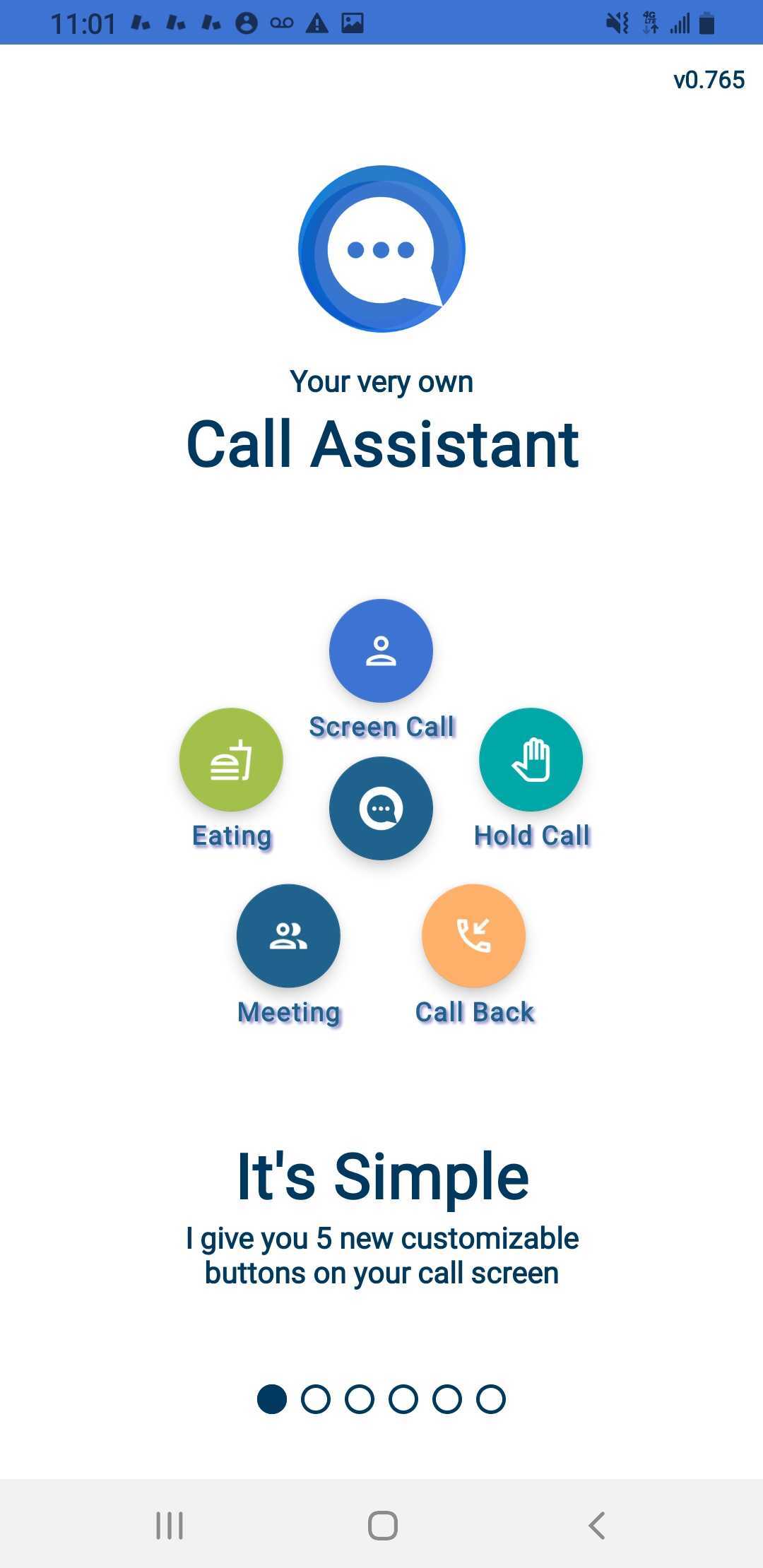
When you start the onboarding process, you will see 6 screen that just show you what the app does. Flip through them and see what exciting features you are about to get!
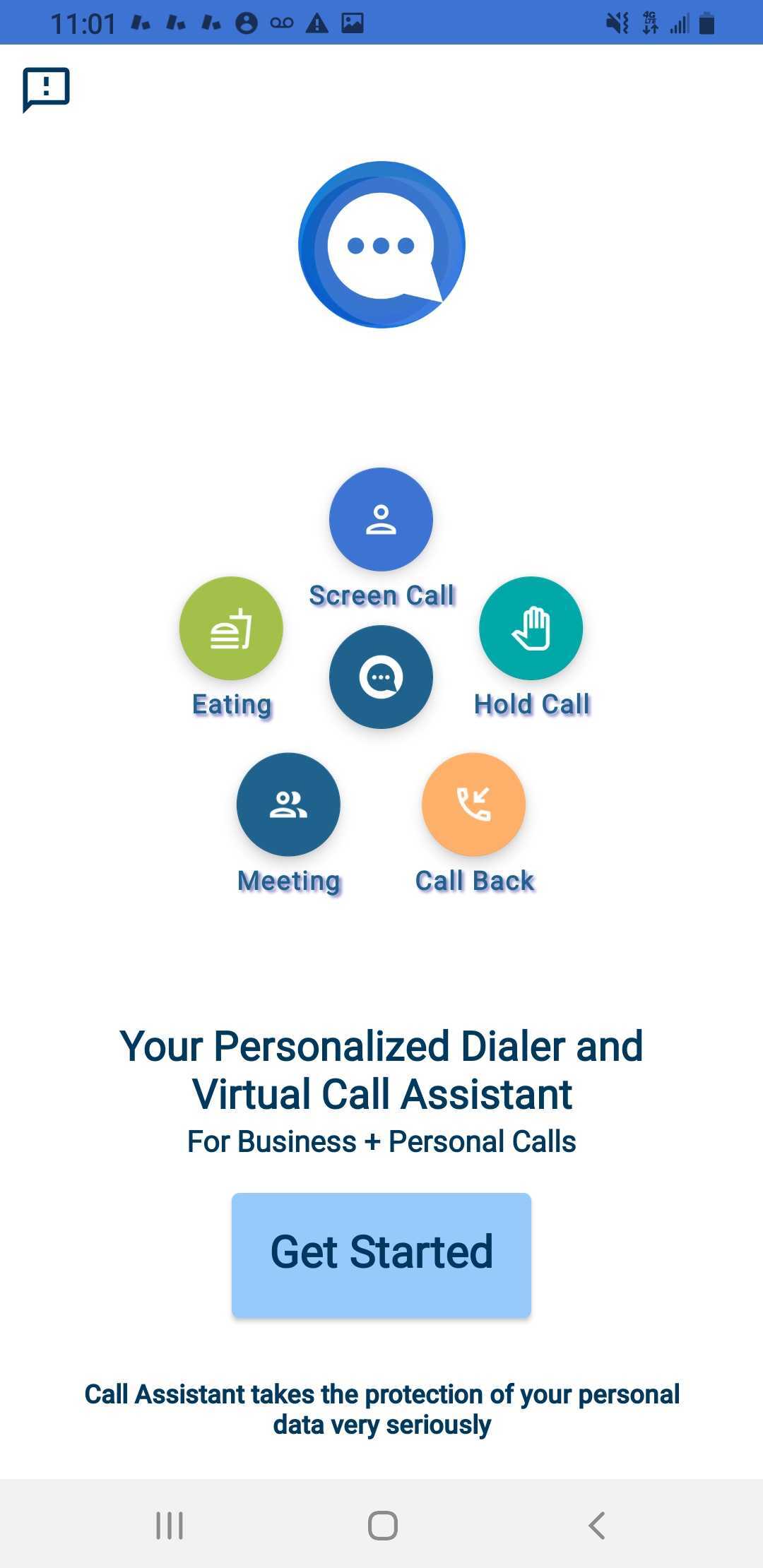
Next you will select "Get Started."
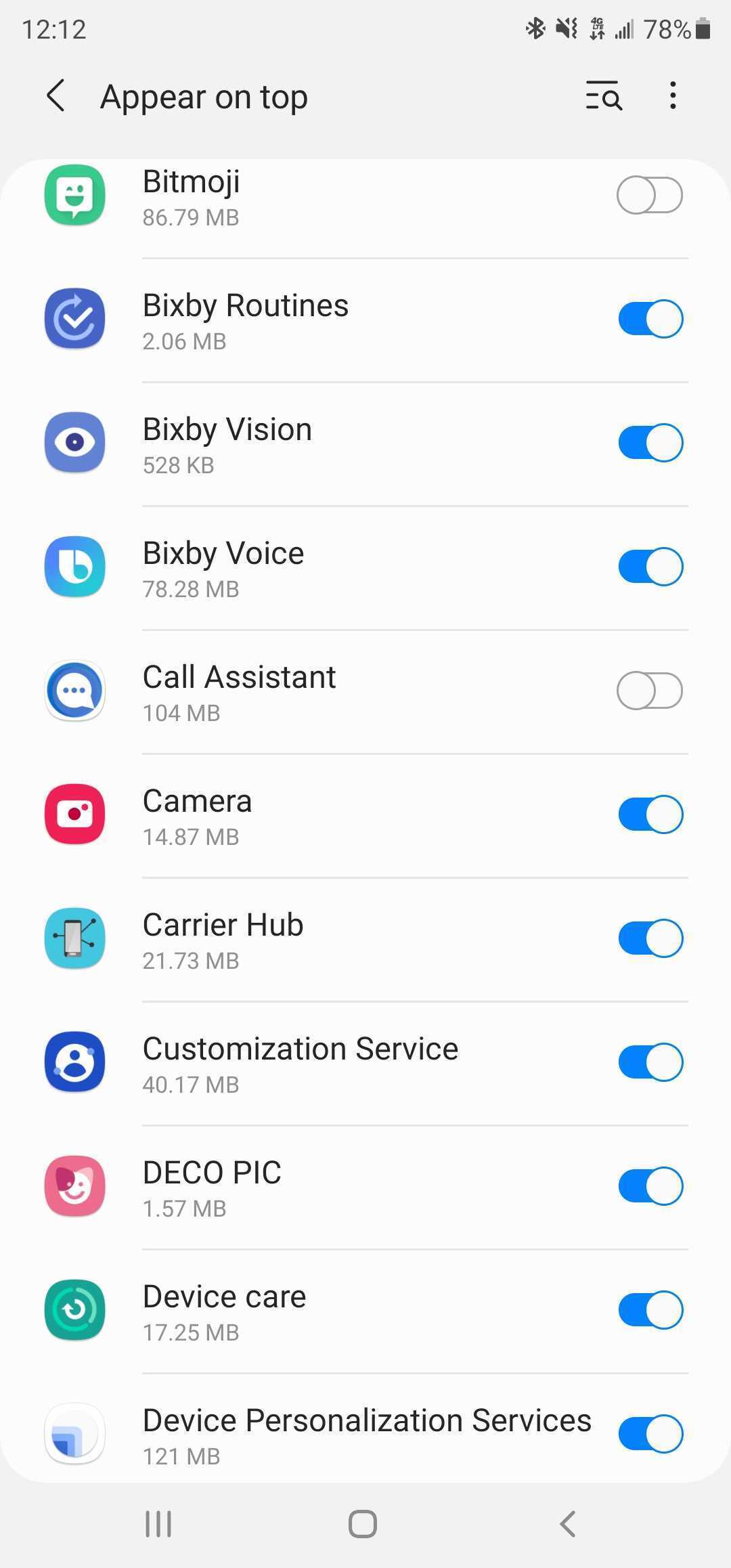
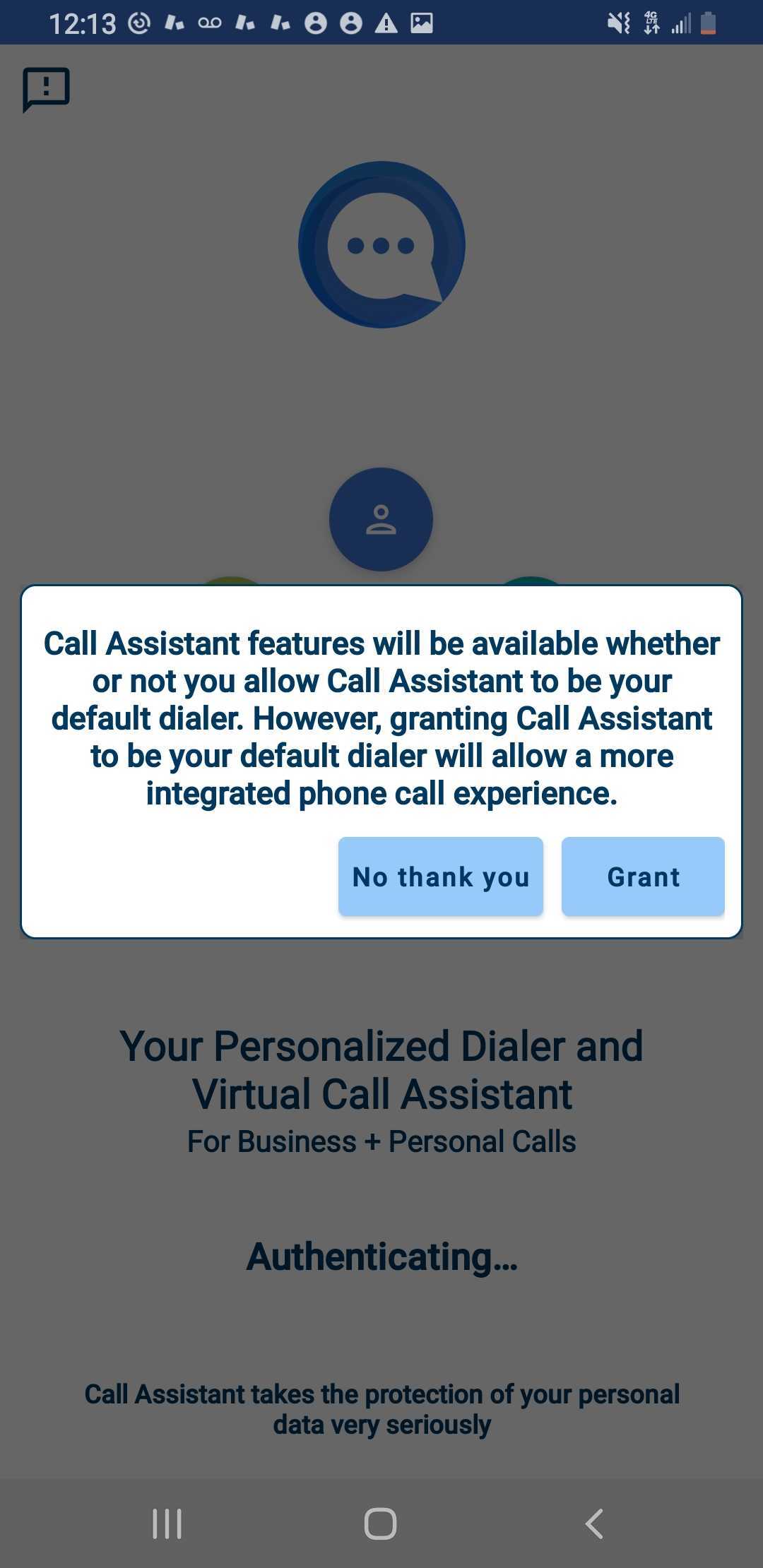
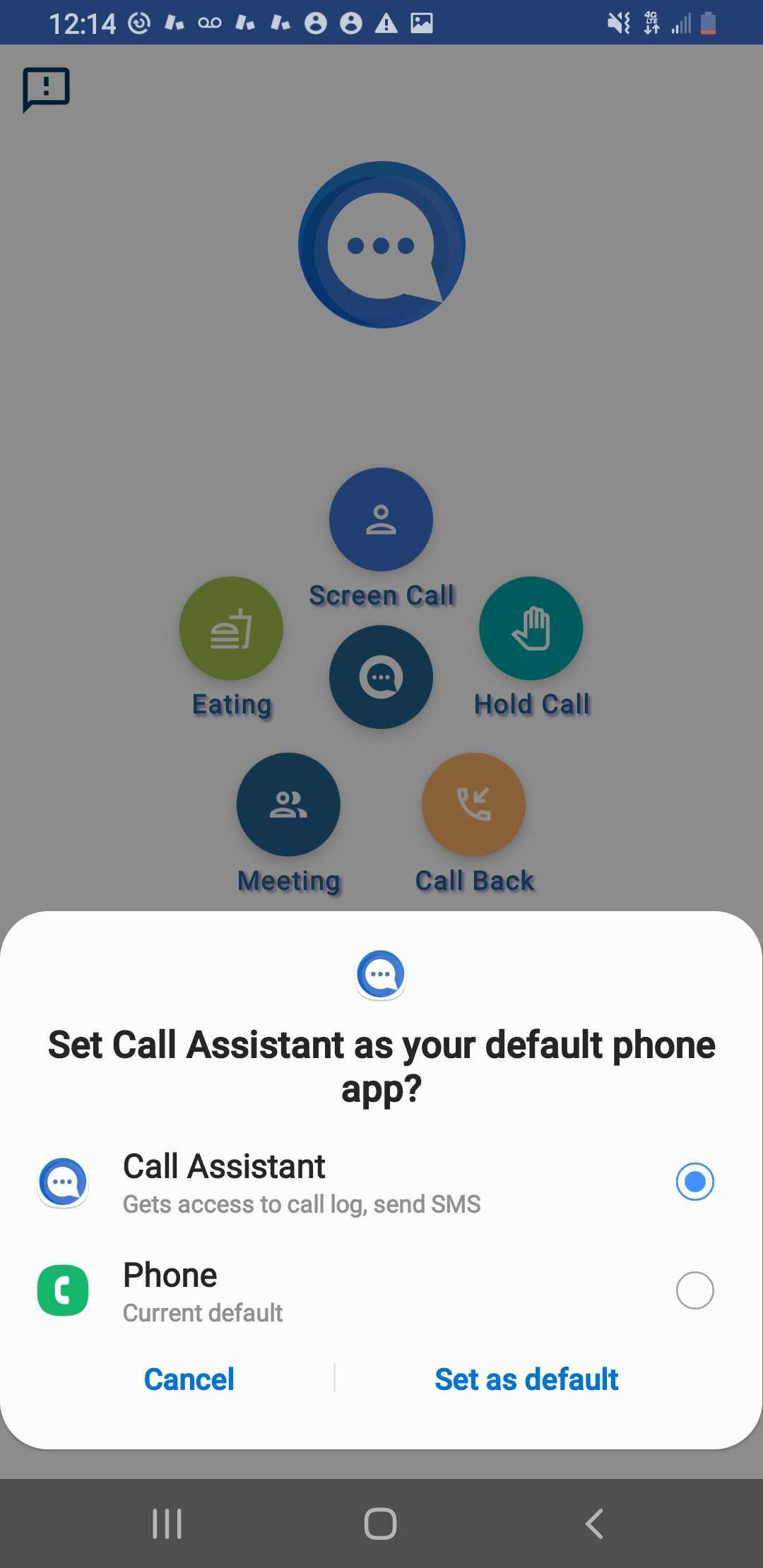
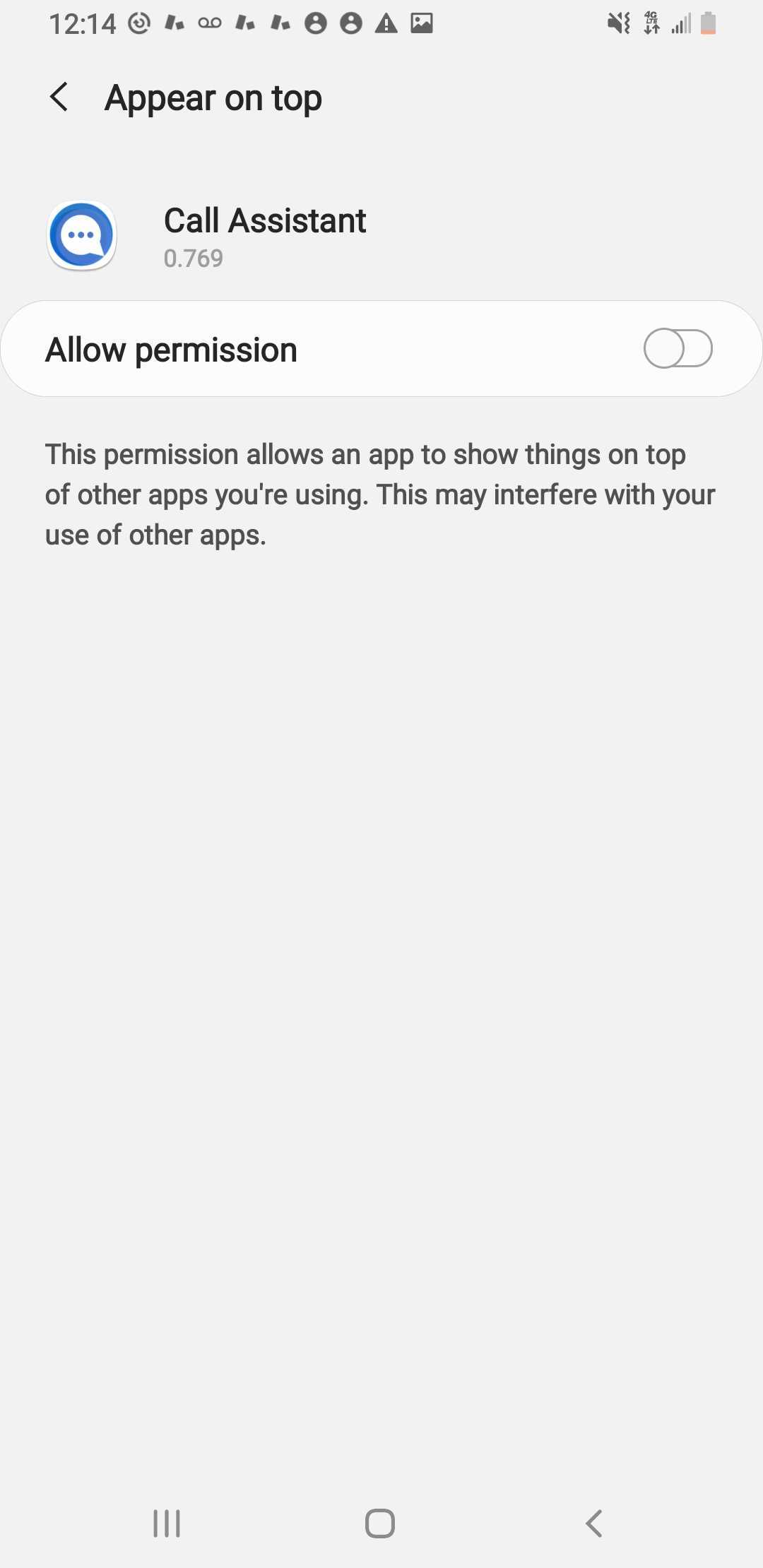
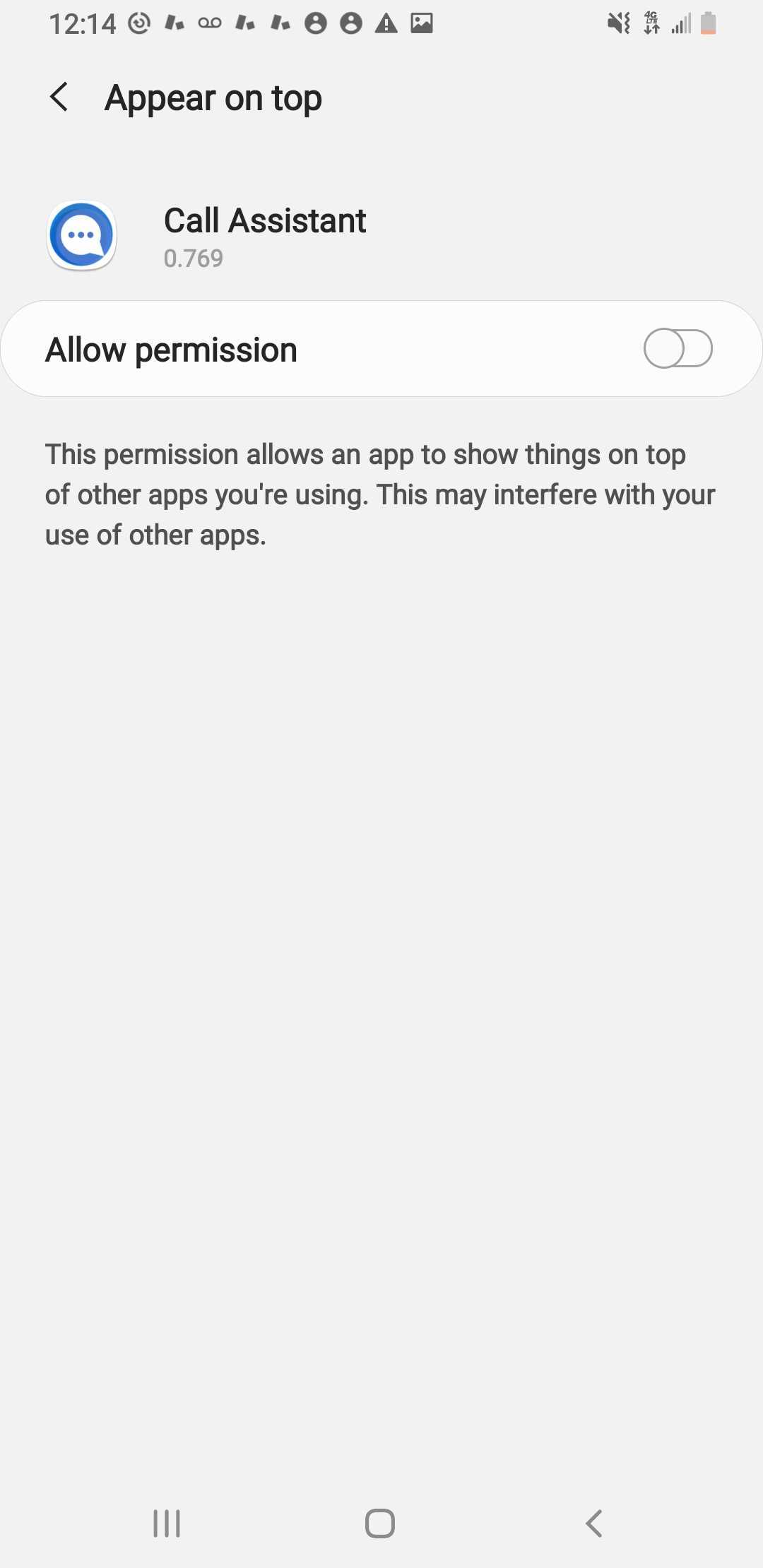
It is going to then ask for permission to be the default dialer - please select "Grant," select "Call Assistant," and "Set as default." *For newer phones, you will have to scroll through a list of apps and find Call Assistant and turn the toggle switch on for this permission, or you will be asked to Allow permission to "Appear on Top," please toggle this on. All options do the exact same thing, different phones just ask in different ways though.
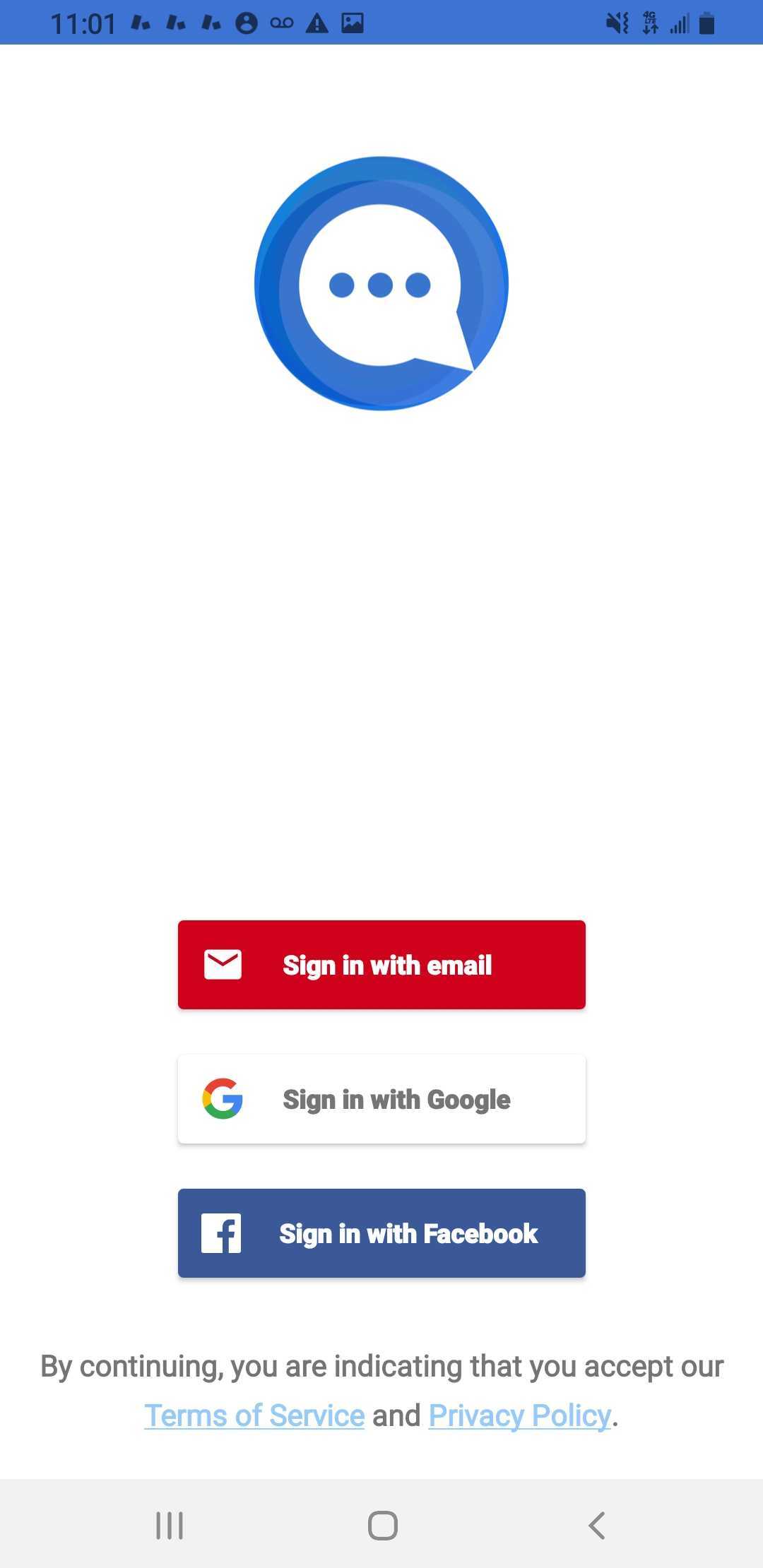
You will then sign into Google using the email you used to login to the Google Play Store and download this app with.
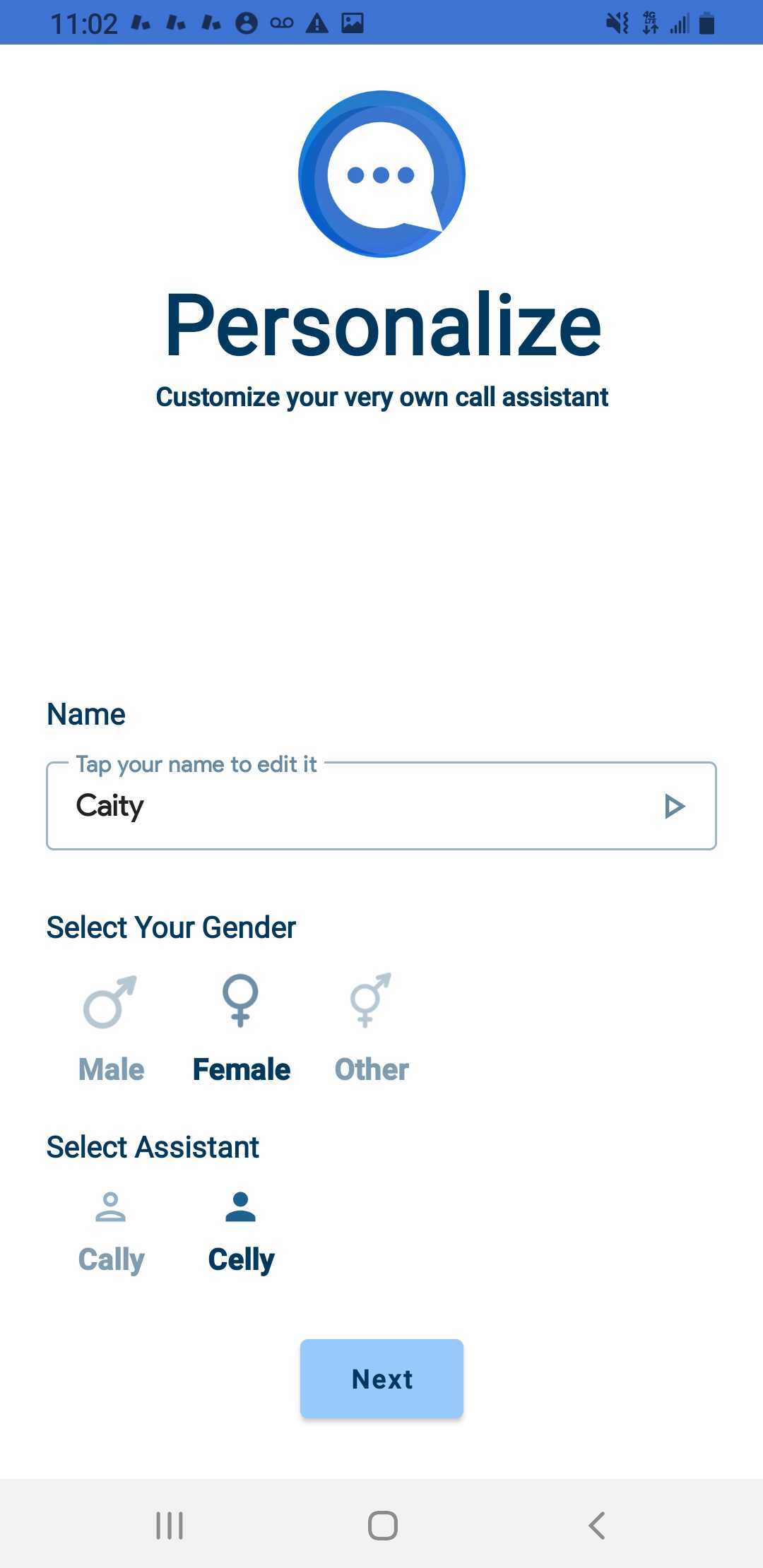
Next, on the "Personalize" page you will set your name and gender if you choose to do so and then select "Next."
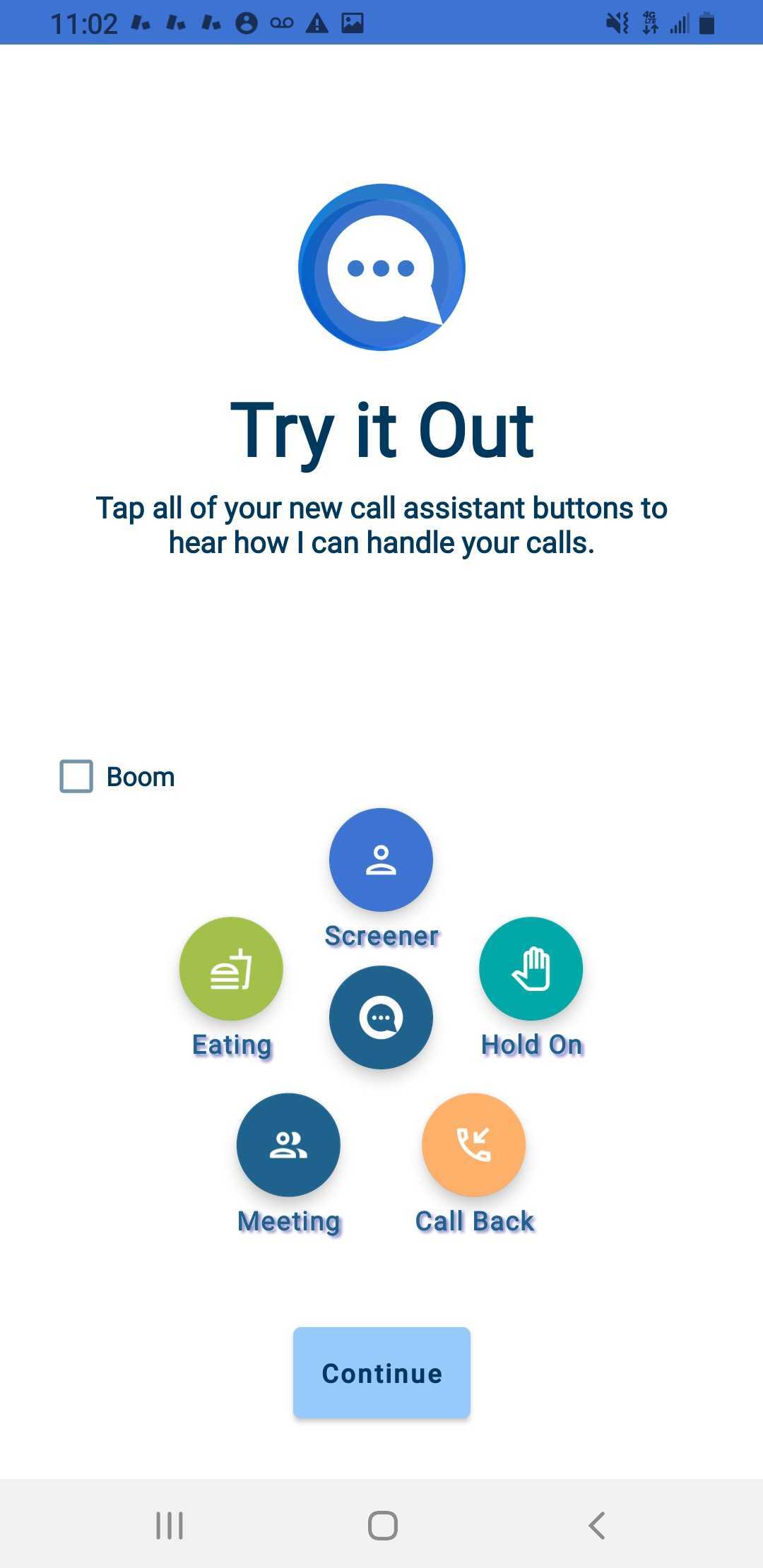
In the "Try it Out" screens, you can select buttons (by tapping them) to see what they do in a preview mode and/or then hit "Continue."
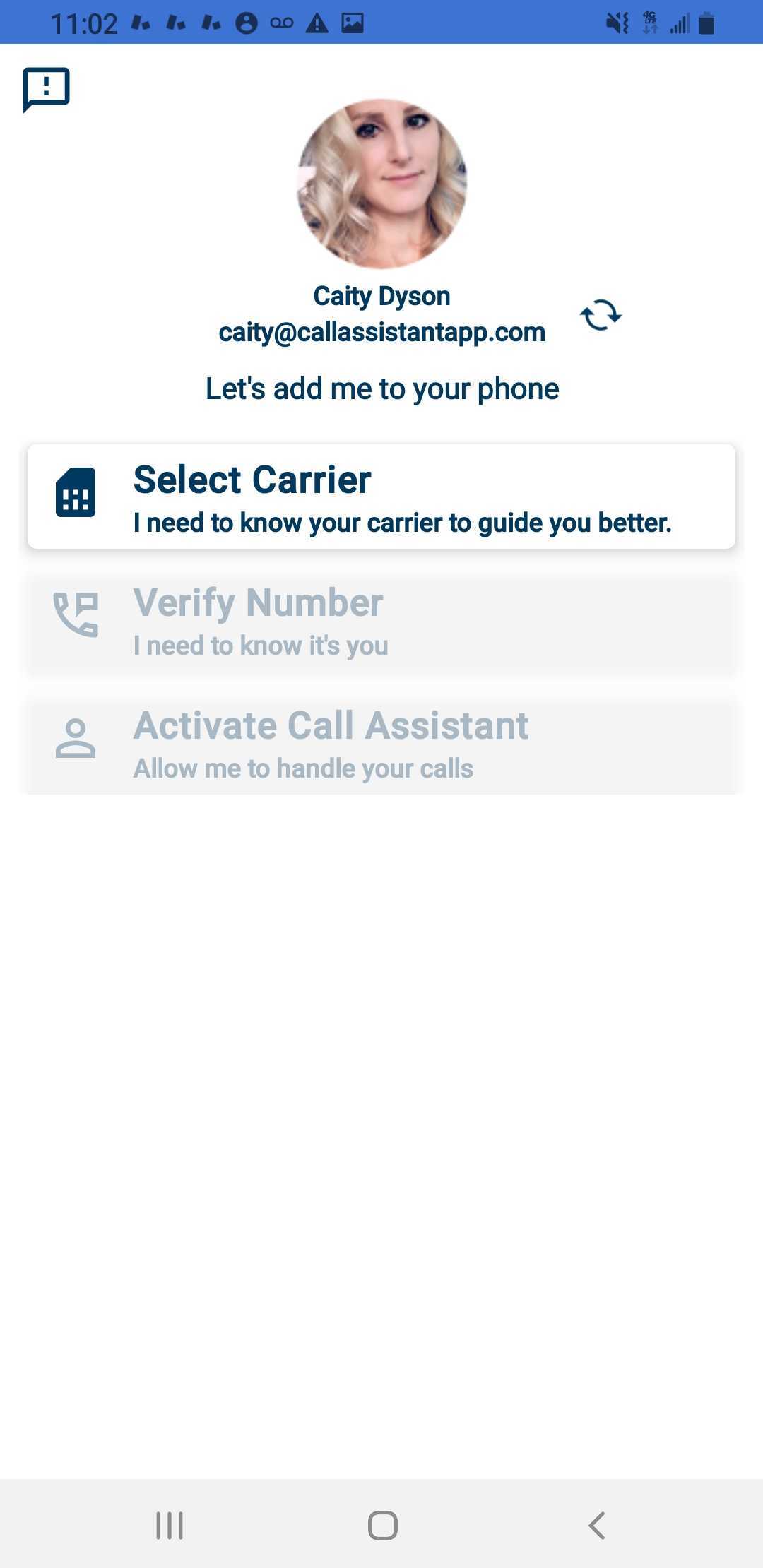
You will then "Select Carrier" (your carrier will generally have an asterisk (*) next to it).
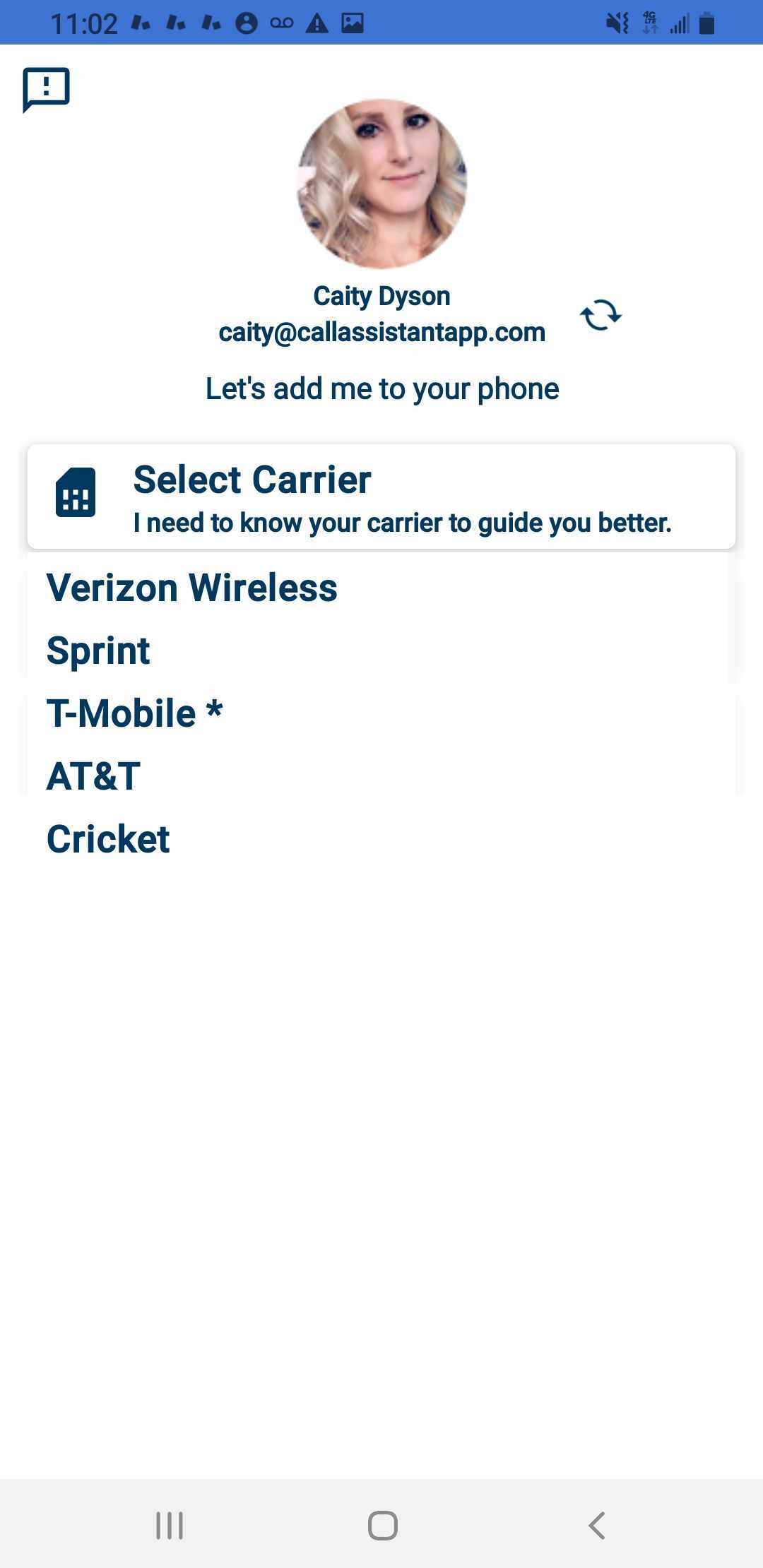
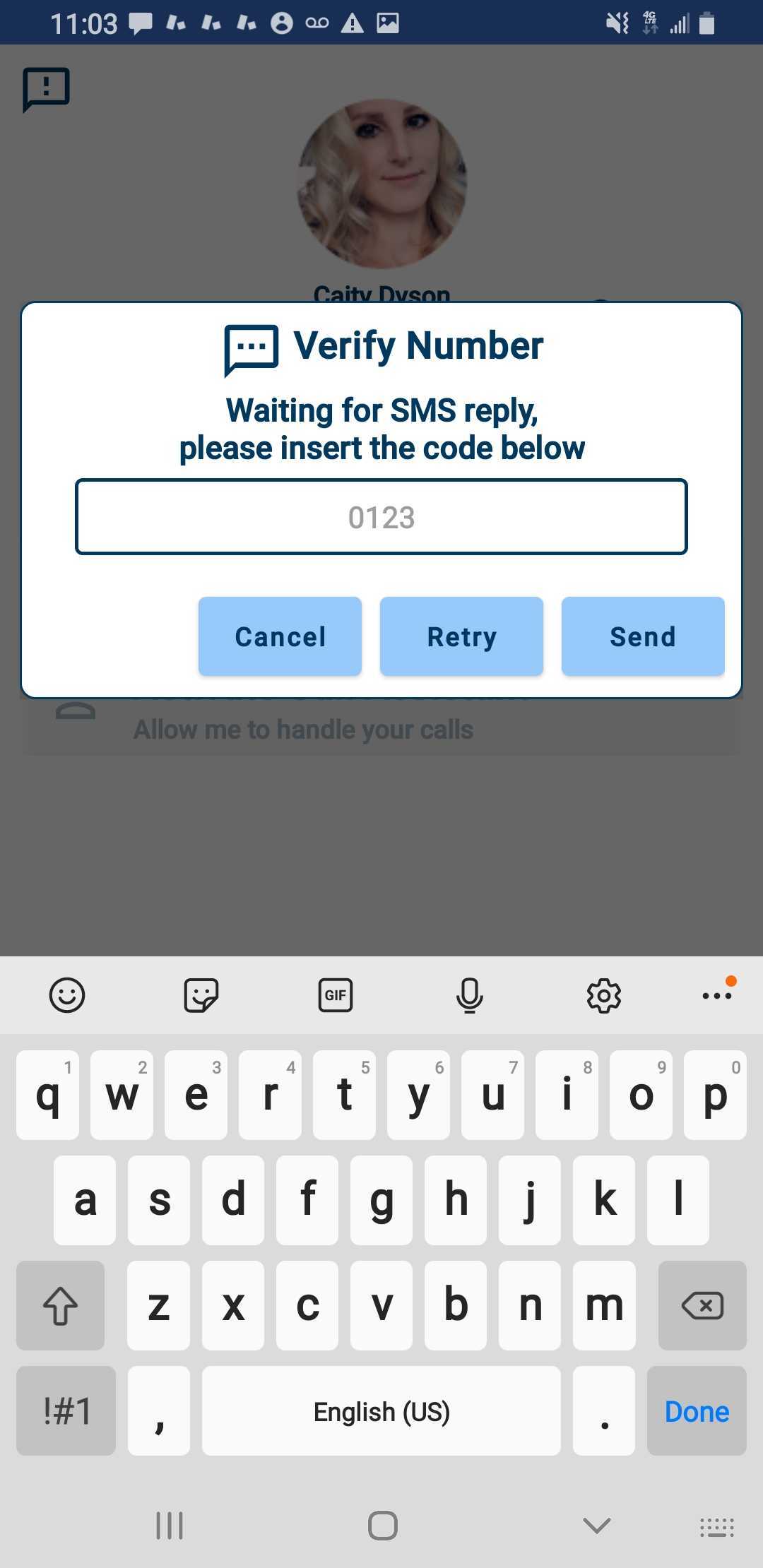
Next, select "Verify Number" and type in your phone number with the area code first.
Example: 4065610476
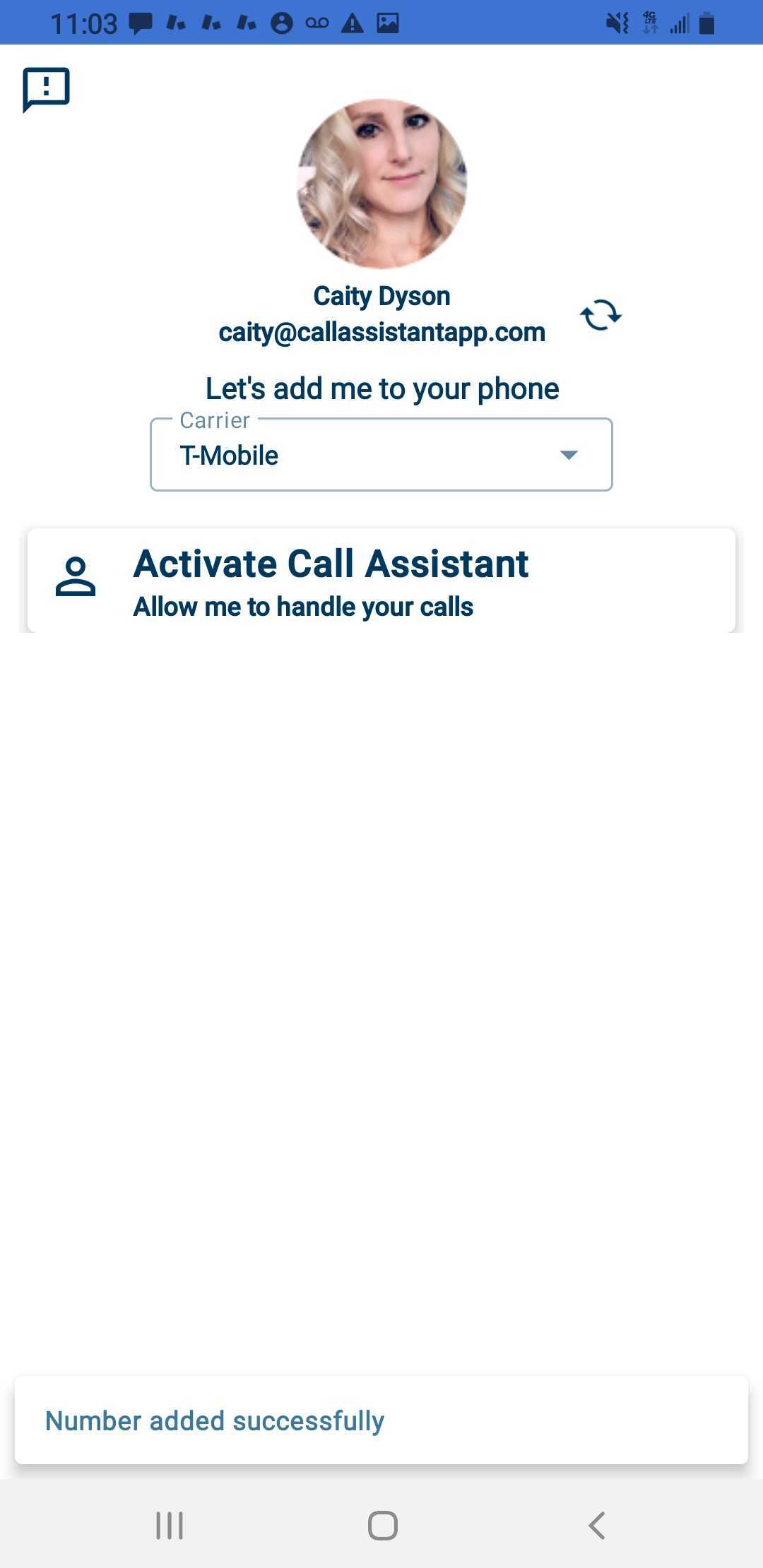
Next, select "Activate Call Assistant" and select "Activate," then "Ok" and "Yes."
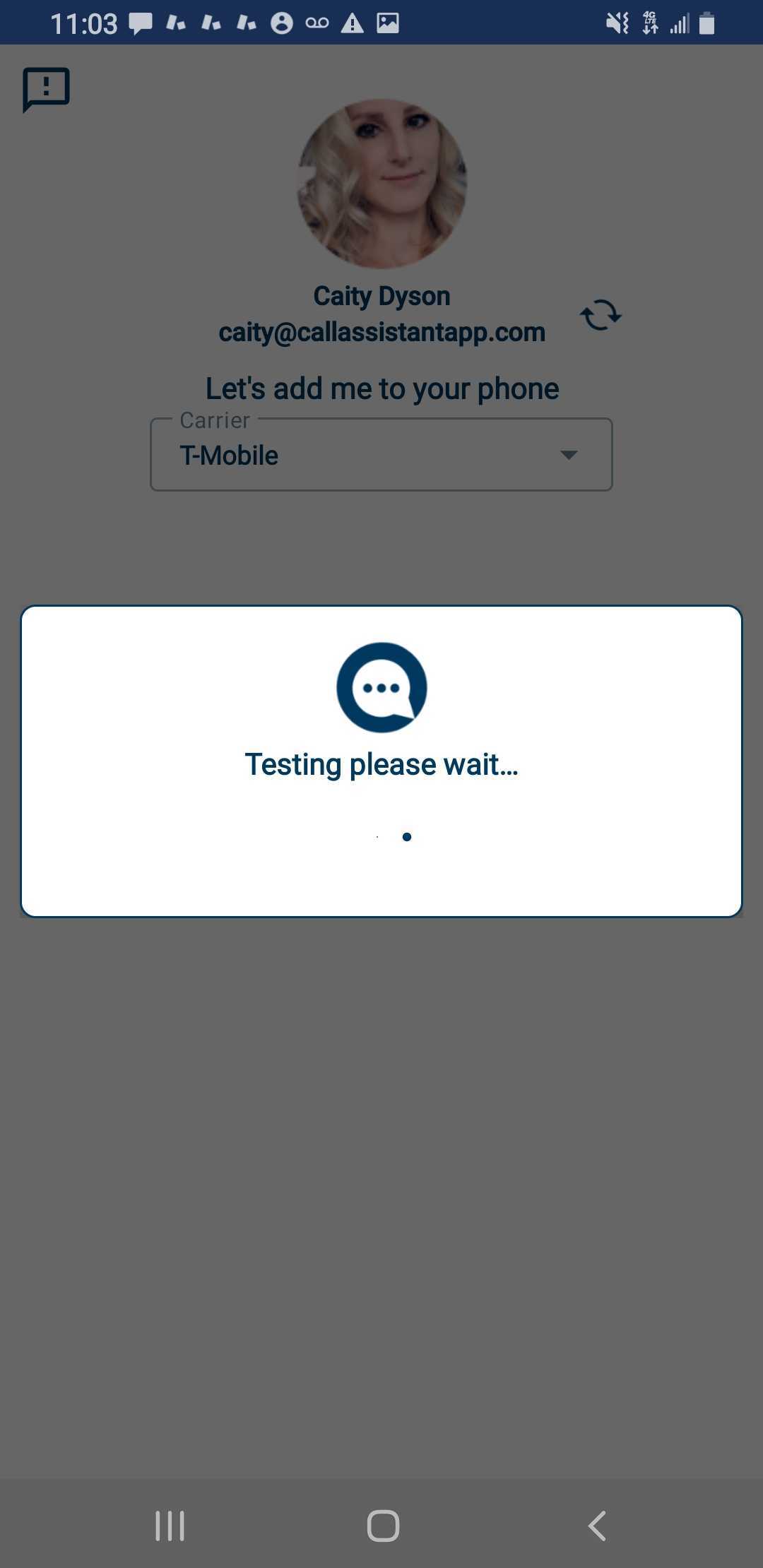
Select "Turn on Overlay," and click on "Allow Permission" (if you already haven't done so for the permissions).
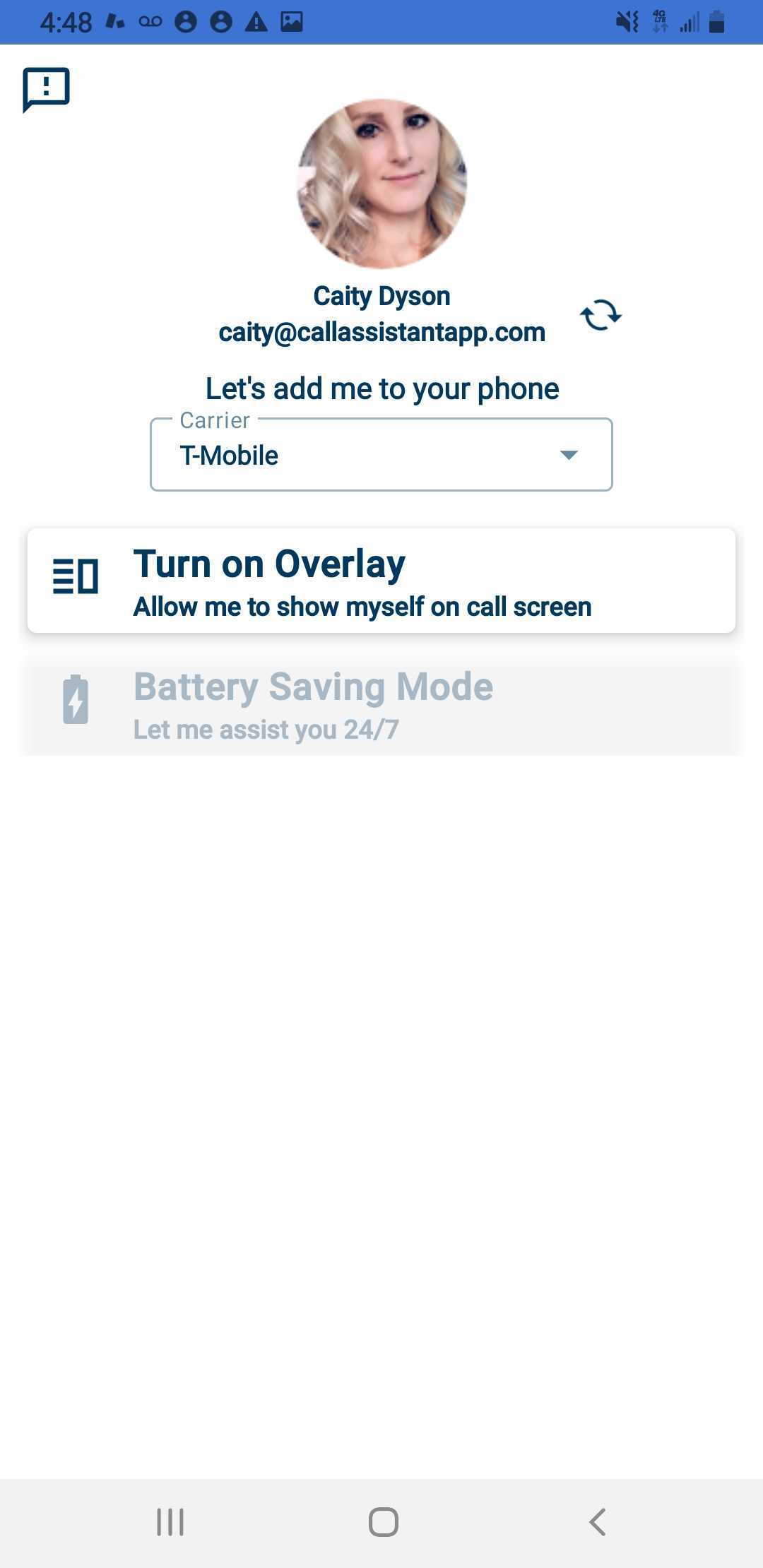
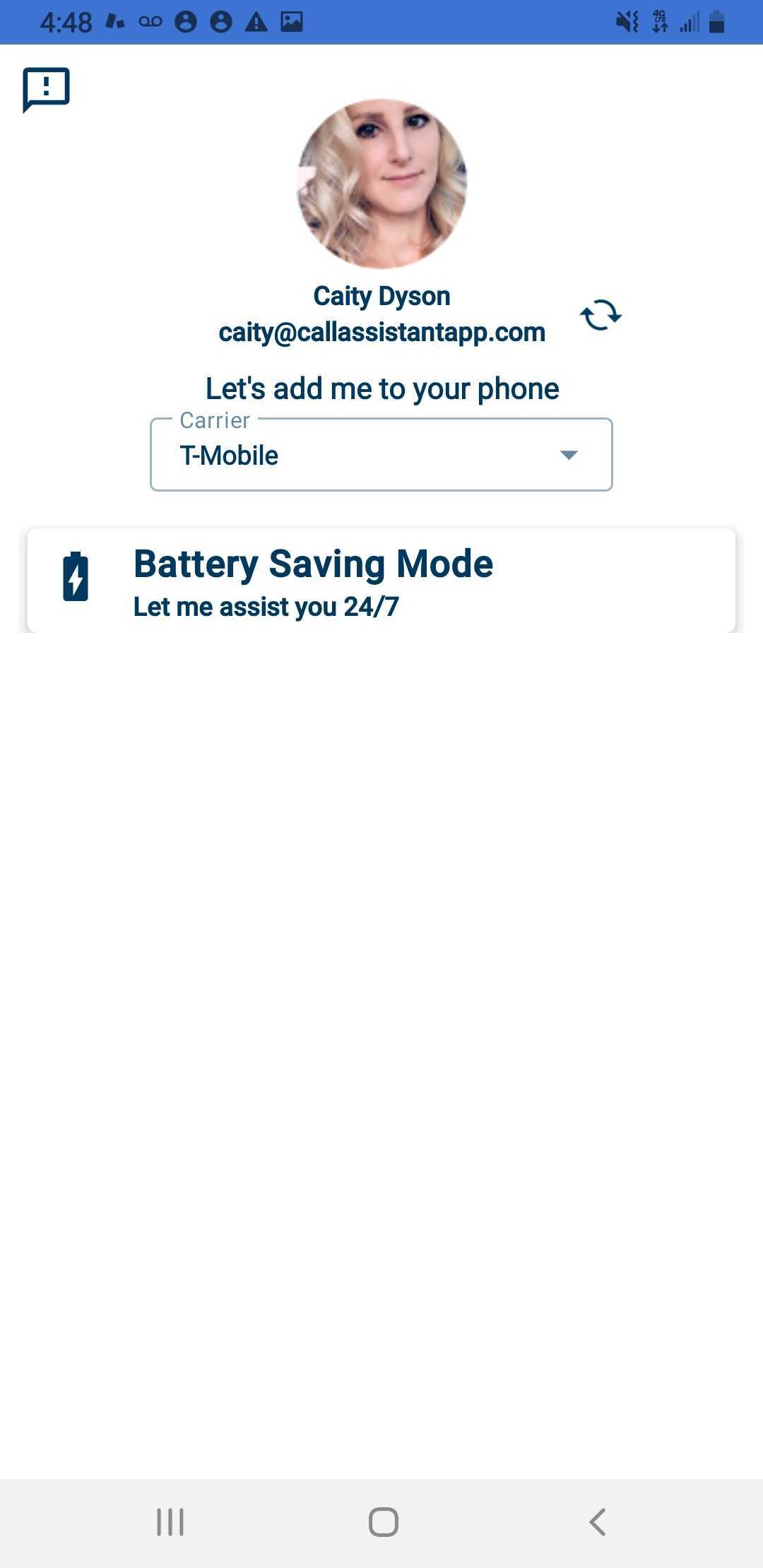
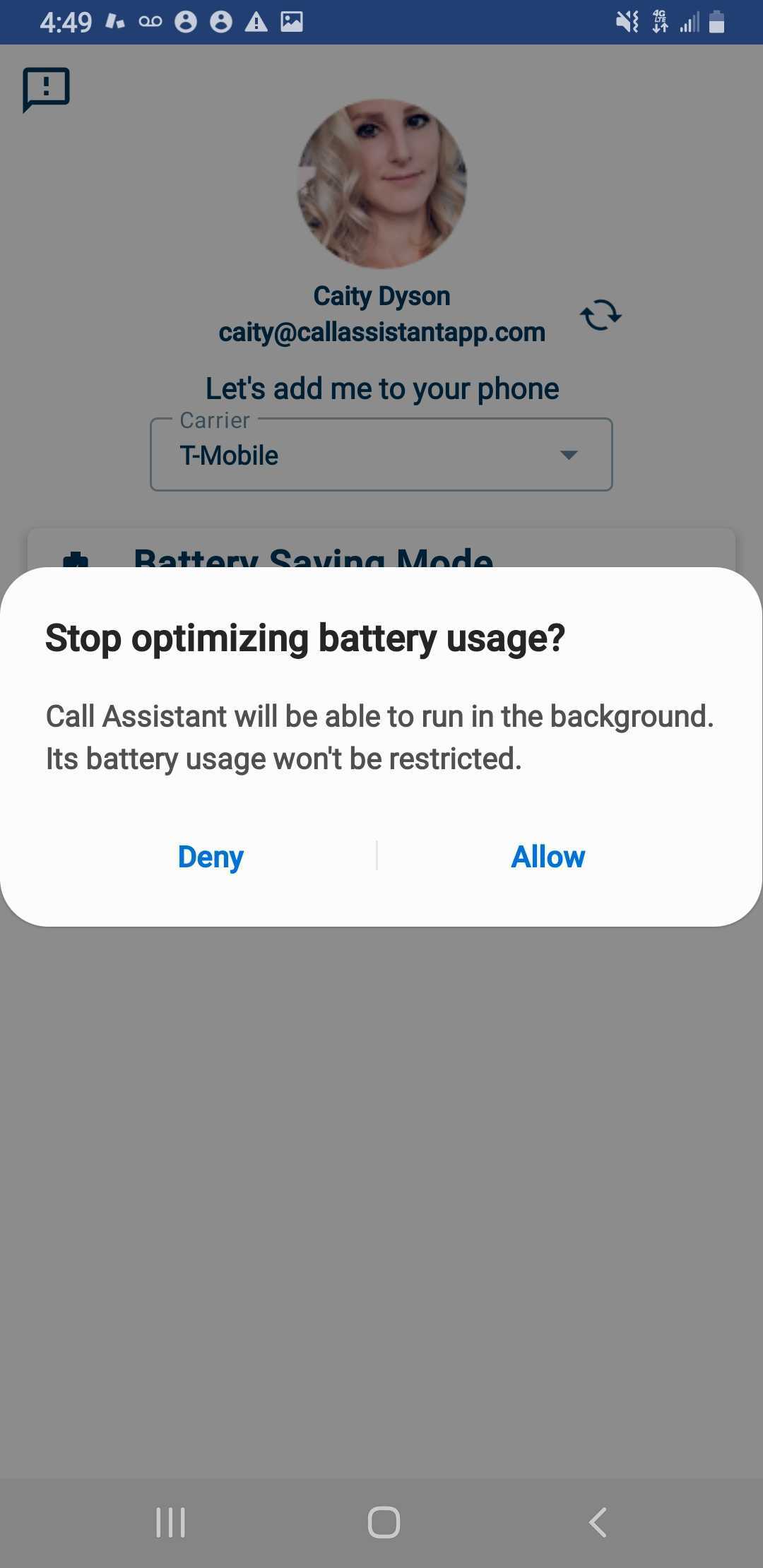
Select "Battery Saving Mode," and select "Allow."
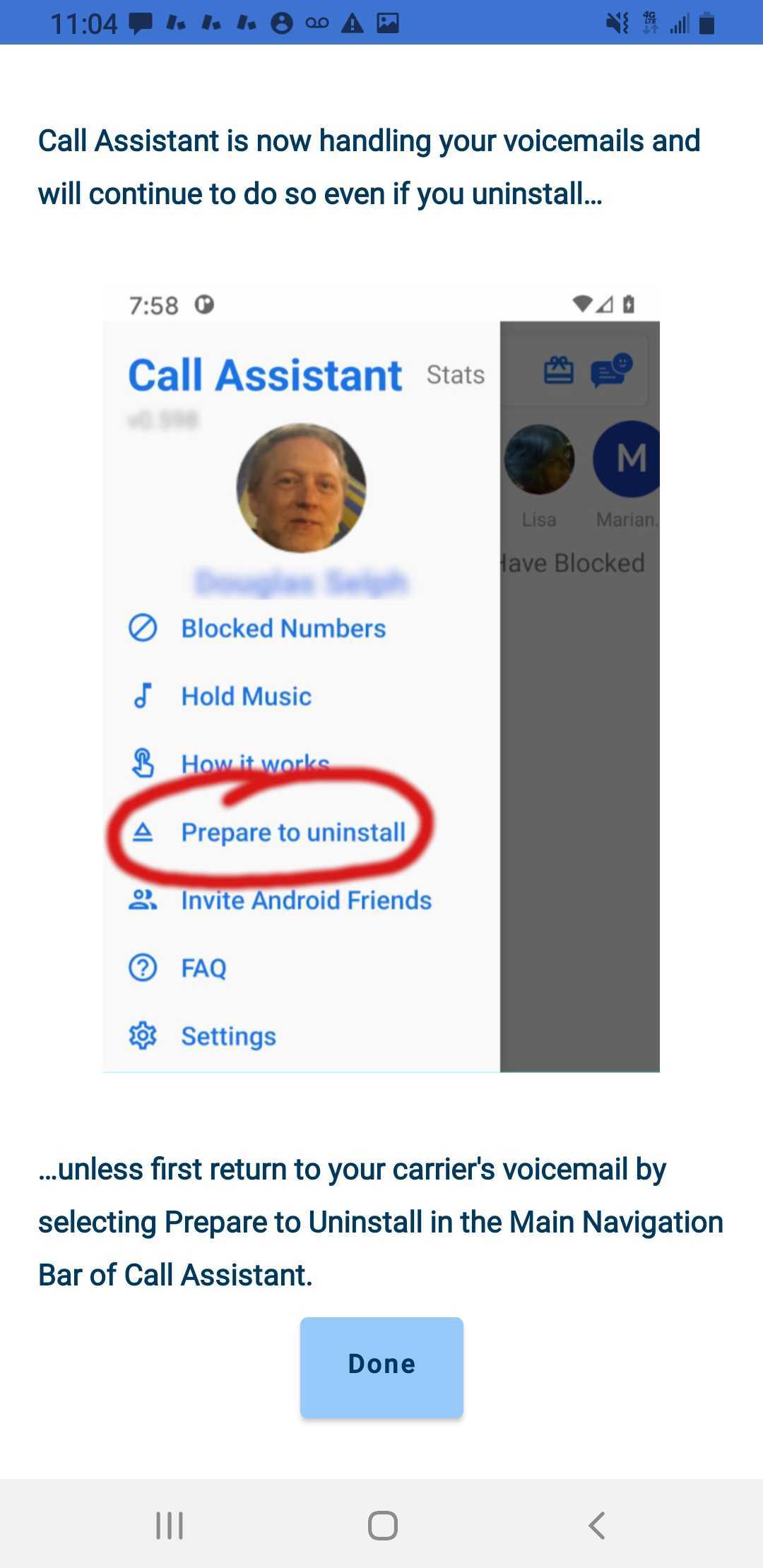
Last, select "Done," and you are in! Welcome to Call Assistant!
Please keep in mind that if these steps are not in this exact order, it is completely ok just so long as you get through all of them!
Thank you and have a great day!
The Call Assistant Customer Support Team
Support hours: M-F 8am-5pm PST
Comments
0 comments
Please sign in to leave a comment.